Project Autodidact
Project Details: https://insightsbyse.com/projectautodidact/
Scott Ernst Bio: https://insightsbyse.com/aboutscotternst/
Project Contact: InsightsBySE@protonmail.com
Progress Report Scope (S02-C01-M01-AllParts)
Stage 2 of 4: Programming, Data Science, and Machine Learning Fundamentals and Applications
Cluster 1 of 14: Fundamental Data Science Knowledge, Skills, and Tools
Module 1 of 3: Google Colab
Parts 1 through 3: See below
Summary Of Goals Achieved
- Learned Colab Key Components: Interface and Access
- Learned Notebook Structure: Code vs. Text Cells
- Learned Notebook Structure: Cell Execution
- Learned Cloud Runtime and State Management: The Virtual Machine
- Learned Cloud Runtime Status and Management
- Learned Cloud Runtime Management: Restarting and Factory Reset
- Learned Basic File Management: Integration with Google Drive
- Learned Basic File Management: Loading Data: Local Upload vs. Drive Mounting
- Learned Notebook Management: Naming and Sharing
- Learned Essential Keyboard Shortcuts and Cell Modes
- Learned System Commands and Magic Commands
- Learned Stream-Based Data Pipeline: Bypassing the VM Ephemeral Disk and GitHub, including streaming flag commands
- Learned Package Management: Pre-installed Libraries and Installation
- Learned Data Persistence: Saving and Re-loading Outputs
- Learned Hardware Acceleration: GPUs and TPUs
- Learned Colab Key Components: Interface and Access
- Learned Security and Untrusted Notebooks
- Learned Collaboration and Version History
- Learned Version Control and GitHub Integration
- Learned Cloud Data Integration: Connecting to Google Sheets and BigQuery
- Learned Environment Reproducibility: Notebook Setup
- Learned Sharing and Reporting Results: Static Output
- Learned Sharing and Reporting Results: Live Notebook vs. Static Report
- Learned Advanced Use: Using Colab Secrets
- Learned Model Deployment Overview: Colab and Hugging Face/Vertex AI (Conceptual)
Part 1 of 3: Basic Knowledge and Skills for Google Colab: The Cloud Workbench
Goal 1 Statement: Learn Colab Key Components: Interface and Access
Goal 1 Plan: (1) Read source materials and (2) Complete practice problems
Goal 1 Work Product: (1) 3 practice problems below and (2) List of best practices
Practice Problem 1: Financial Portfolio Analysis Setup
Scenario: You’re a junior financial analyst at Apex Investments who needs to set up a new, documented workspace for analyzing the historical stock performance of the “Magnificent Seven” technology stocks for the start of a new quarterly review project to ensure the analysis process is well-documented, reproducible, and easy for your manager to review. You must create a new Colab notebook, name it correctly, and structure the first few sections.
Problem to be Solved: Create a new Colab notebook and establish the essential structure using Text Cells and Markdown formatting for documentation, demonstrating knowledge of notebook creation and interface navigation.
Knowledge and Skills Developed: Notebook Creation and Naming. Using Text Cells and Markdown (Headings) for documentation. Utilizing the Table of Contents for navigation.

Practice Problem 2: Business Data Preparation and Access
Scenario: You’re a business intelligence specialist at Global Retail who needs to upload a large Q3 sales dataset (Q3_Sales_Raw.csv) from the company’s secure Google Drive folder and prepare the runtime environment for processing at the beginning of a supply chain forecasting project to ensure the necessary large file is accessible to the Colab environment for a machine learning model. You must use the Google Drive mounting feature and check the runtime type.
Problem to be Solved: Access a large file stored in Google Drive from the Colab environment and confirm the runtime environment is configured for a computationally intensive task, demonstrating knowledge of access methods and runtime management.
Knowledge and Skills Developed: Runtime Management (checking and changing hardware accelerator). Accessing Google Drive from Colab (Mounting Drive). Basic Python I/O (Input/Output) construct for file path validation.
Practice Problem 3: Sports Data Workflow Efficiency
Scenario: You’re a sports data analyst for a basketball team who needs to quickly load a small dataset of player statistics for a draft prediction model and demonstrate efficient coding by using a pre-written code snippet for data loading in a pre-existing Colab notebook. You must use the Code Snippets feature and run the code using a keyboard shortcut.
Problem to be Solved: Use the Code Snippets feature to quickly insert a standard block of code (simulated data loading) and execute it efficiently using a keyboard shortcut, demonstrating knowledge of the Code Snippets pane and execution efficiency.
Knowledge and Skills Developed: Using the Code Snippets pane for efficiency. Efficient cell execution using keyboard shortcuts. Basic code execution and output validation.
Goal 1 Result: All 3 practice problems completed (practice files deleted)
Goal 2 Statement: Learn Notebook Structure: Code vs. Text Cells
Goal 2 Plan: (1) Read source materials and (2) Complete practice problems
Goal 2 Work Product: (1) 3 practice problems below and (2) List of best practices
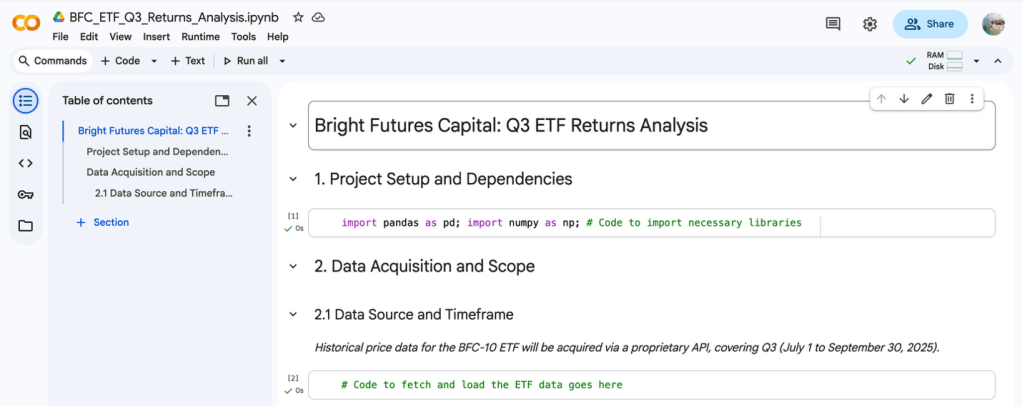
Practice Problem 1: Financial Reporting Documentation
Scenario: You’re an equity researcher at Bright Futures Capital who needs to analyze the quarterly returns of a new Exchange Traded Fund (ETF) and present the initial findings in a notebook structure that is easy for the portfolio manager to review as the first deliverable of a new project in a new Colab environment to establish a clear, documented, and professional workflow for all future financial analysis. You must create a structured notebook using Markdown headings and placeholder code.
Problem to be Solved: Create the initial structure of a Colab notebook that adheres to professional reporting standards, using a minimum of three levels of Markdown headings and the correct sequence of Text and Code Cells.
Knowledge and Skills Developed: Using Text Cells and Markdown to establish the primary narrative and structure. Correct use of #, ##, and ### notation for generating a navigable Table of Contents (TOC). Understanding the required sequence of explanatory text before executable code.
Practice Problem 2: Business Forecasting & Debugging
Scenario: You’re a demand forecasting specialist at a global logistics firm who needs to troubleshoot a notebook provided by a colleague that failed to run due to an out-of-order execution, specifically a variable being used before it was defined. You must re-run cells in the correct sequence and then use a Text Cell to document the fix.
Problem to be Solved: Identify the cause of a NameError in a Code Cell and fix it by enforcing the correct sequential execution flow, then using a Text Cell to explain the fix.
Knowledge and Skills Developed: Understanding the stateful nature of code cells and sequential execution. Debugging a NameError caused by incorrect execution order. Using a Text Cell to document problem-solving and fix logic.
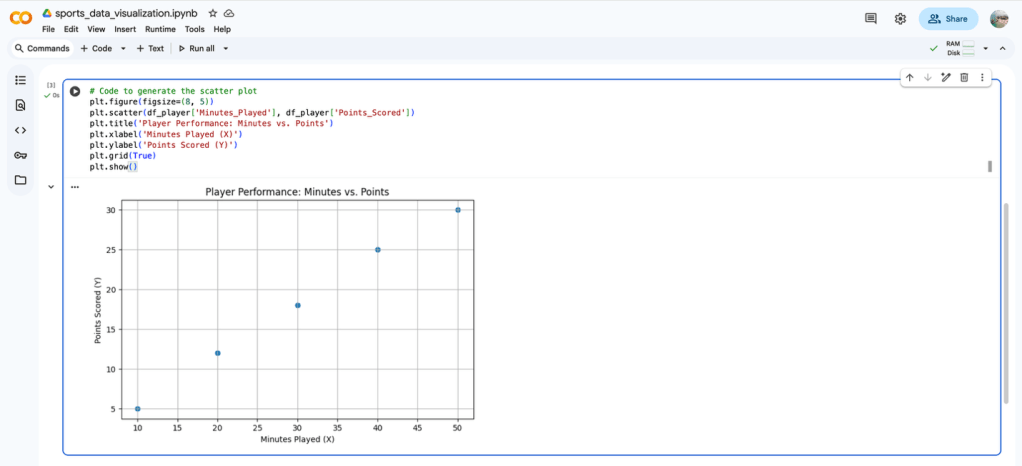
Practice Problem 3: Sports Data Visualization and LaTeX
Scenario: You’re a sports analytics student working on predicting player performance using regression models who needs to display a key performance metric formula (e.g., Simple Linear Regression) for documentation and then generate a corresponding scatter plot of the data as part of the modeling chapter in your thesis notebook to ensure the complex mathematical formula is clearly documented using professional notation and the subsequent visual output is correct. You must use a Text Cell for the equation (using LaTeX) and a Code Cell for the data structure creation and visualization.
Problem to be Solved: Create a Text Cell to display the formula for a Simple Linear Regression model using LaTeX and then create a subsequent Code Cell to define a simple data structure and plot it, demonstrating the interdisciplinary power of the notebook.
Knowledge and Skills Developed: Using LaTeX within a Text Cell for mathematical notation. Defining a simple data structure (pandas DataFrame) in a Code Cell. Generating a basic visualization using a Python library (matplotlib) as code output.

Goal 2 Result: All 3 practice problems completed (practice files deleted)
Goal 3 Statement: Learn Notebook Structure: Cell Execution
Goal 3 Plan: (1) Read source materials and (2) Complete practice problems
Goal 3 Work Product: (1) 3 practice problems below and (2) List of best practices
Practice Problem 1: Financial State Management
Scenario: You’re a quantitative analyst at Delta Hedge Fund who has run a notebook to calculate two important financial metrics, Sharpe Ratio (sharpe_q1) and Alpha (alpha_q1), but needs to reset and recalculate the Alpha metric for Q2 without re-running the lengthy Sharpe Ratio calculation to demonstrate efficient state management by changing only a single variable and re-running the dependent cell, avoiding unnecessary re-execution. You must use the correct execution method after changing a single input variable.
Problem to be Solved: Isolate the dependent cells and execute only the necessary components to recalculate alpha_q1 for a new value, demonstrating knowledge of stateful execution and efficiency.
Knowledge and Skills Developed: Understanding and verifying the stateful dependency between variables and cells. Efficiently rerunning a single dependent cell (Ctrl/Cmd + Enter). Confirming the execution count to prove efficiency.
Practice Problem 2: Business Reproducibility Test
Scenario: You’re a business intelligence developer at a retail chain who has developed a forecasting model that works perfectly in your current session, but your are concerned about sharing it because a key variable for data filtering (MIN_SALES_THRESHOLD) is defined deep in the notebook, potentially causing errors if the notebook is run from scratch before the final presentation to leadership. To ensure the notebook is truly reproducible and can be run top-to-bottom without manual intervention, you must use the ultimate test of reproducibility.
Problem to be Solved: Execute the most comprehensive command to test the notebook’s reproducibility, which requires a clean runtime state and full sequential execution, and identify any execution order errors.
Knowledge and Skills Developed: Using Runtime > Restart and run all as the definitive reproducibility test. Identifying and fixing execution order errors (non-linear state dependencies). Understanding the Runtime component’s function in a professional workflow.
Practice Problem 3: Sports Resource Management
Scenario: You’re a sports data analyst for an NBA team who initiated a long, resource-intensive grid search optimization (grid_search_cell) for a player’s performance prediction model. After 15 minutes, you find a fundamental error in the feature selection in a previous cell, meaning the grid search is running on bad data during the model training phase in a Colab notebook with the GPU accelerator enabled. To stop the current wasteful computation immediately, conserve the limited GPU resources, and restart the process efficiently, you must use the correct control flow command.
Problem to be Solved: Immediately interrupt the long-running cell and then selectively re-run the necessary pre-processing and training cells, demonstrating efficient resource and execution control.
Knowledge and Skills Developed: Using Runtime > Interrupt execution to stop a process. Understanding the necessity of interrupting expensive cloud resource usage. Selective re-execution to conserve time and resources.
Goal 3 Result: All 3 practice problems completed (practice files deleted)
Goal 4 Statement: Learn Cloud Runtime and State Management: The Virtual Machine
Goal 4 Plan: (1) Read source materials and (2) Complete practice problems
Goal 4 Work Product: (1) 2 practice problems below and (2) List of best practices
Practice Problem 1: Finance Portfolio Optimization (RAM Management)
Scenario: You’re a risk analyst at Capital Markets Advisory who is running a high-frequency trading simulation requiring large matrix multiplications, but the VM keeps crashing with an Out-Of-Memory (OOM) error during the final optimization step because previous exploratory data structures are still in memory. To resolve the OOM crash and free up sufficient RAM to run the final, memory-intensive optimization algorithm, you must use an explicit Python command to clear the state of an unnecessary, large data structure.
Problem to be Solved: Identify the unused memory-hogging variable and use the correct Python command to delete it, freeing RAM for the next critical step.
Knowledge and Skills Developed: Real-time monitoring of the RAM status indicator. Using the Python del statement for memory optimization. Understanding the necessity of clearing the VM state to prevent OOM errors.
Practice Problem 2: Business Data Integrity (Disk Management)
Scenario: You’re a supply chain forecaster at MegaCorp who needs to train a model using a massive 5GB zip file (supply_data.zip) downloaded via !wget. The training requires saving temporary logs, but the download is leaving insufficient Disk space, causing the model to crash during log writing. To ensure sufficient Disk space on the VM for model logging and output files, you must clear the unnecessary installation file by using a Shell command to remove the large, compressed source file after it has been successfully extracted.
Problem to be Solved: After successfully extracting the dataset, use a Shell Command to remove the large, redundant source zip file to free up necessary disk space.
Knowledge and Skills Developed: Using the Shell Command !rm (remove) for Disk management. Understanding the difference between raw source files and extracted data in terms of disk state. Monitoring the Disk status indicator.
Goal 4 Result: Both practice problems completed (practice files deleted)
Goal 5 Statement: Learn Cloud Runtime Status and Management
Goal 5 Plan: Read source materials
Goal 5 Work Product: List of best practices
Goal 5 Result: Completed
Goal 6 Statement: Learn Cloud Runtime Management: Restarting and Factory Reset
Goal 6 Plan: Read source materials
Goal 6 Work Product: List of best practices
Goal 6 Result: Completed
Goal 7 Statement: Learn Basic File Management: Integration with Google Drive
Goal 7 Plan: Read source materials
Goal 7 Work Product: List of best practices
Goal 7 Result: Completed
Goal 8 Statement: Learn Basic File Management: Loading Data: Local Upload vs. Drive Mounting
Goal 8 Plan: Read source materials
Goal 8 Work Product: List of best practices
Goal 8 Result: Completed
Goal 9 Statement: Learn Notebook Management: Naming and Sharing
Goal 9 Plan: Read source materials
Goal 9 Work Product: List of best practices
Goal 9 Result: Completed
Part 2 of 3: Intermediate Knowledge and Skills for Google Colab: Efficiency and Cloud Resources
Goal 1 Statement: Learn Essential Keyboard Shortcuts and Cell Modes
Goal 1 Plan: (1) Read source materials and (2) Complete practice problems
Goal 1 Work Product: List of best practices
Goal 1 Result: Completed
Goal 2 Statement: Learn System Commands and Magic Commands
Goal 2 Plan: (1) Read source materials and (2) Complete practice problems
Goal 2 Work Product: List of best practices
Goal 2 Result: Completed
Goal 3 Statement: Learn Stream-Based Data Pipeline: Bypassing the VM Ephemeral Disk and GitHub, including streaming flag commands
Goal 3 Plan: (1) Read source materials and (2) Complete practice problems
Goal 3 Work Product: List of best practices
Goal 3 Result: Completed
Goal 4 Statement: Learn Package Management: Pre-installed Libraries and Installation
Goal 4 Plan: (1) Read source materials and (2) Complete practice problems
Goal 4 Work Product: List of best practices
Goal 4 Result: Completed
Goal 5 Statement: Learn Data Persistence: Saving and Re-loading Outputs
Goal 5 Plan: (1) Read source materials and (2) Complete practice problems
Goal 5 Work Product: List of best practices
Goal 5 Result: Completed
Goal 6 Statement: Learn Hardware Acceleration: GPUs and TPUs
Goal 6 Plan: (1) Read source materials and (2) Complete practice problems
Goal 6 Work Product: List of best practices
Goal 6 Result: Completed
Goal 7 Statement: Learn Colab Key Components: Interface and Access
Goal 7 Plan: (1) Read source materials and (2) Complete practice problems
Goal 7 Work Product: (1) 3 practice problems below and (2) List of best practices
Practice Problem 1: Business (Dropdown for Scenario Selection)
Scenario: The marketing strategy team uses a predictive model to allocate next quarter’s budget across three global regions: North America, APAC, and EMEA. The marketing manager, who is not a coder, must select the target region to generate the forecast report. To ensure correct, standardized input for the forecast without requiring code modification, the marketing strategy team must use a Colab Form Field dropdown.
Problem to be Solved: Create a dropdown Form Field labeled “Target Region” that forces the user to select one of the three options: “North America,” “APAC,” or “EMEA.” The selected value must be assigned to the Python variable target_region.
Knowledge and Skills Developed: Implementing the basic #@param comment syntax for dropdowns. Understanding how to assign string values from the Form Field to a Python variable.
Cell returned target region North America

Cell returned target region APAC

Cell returned target region EMEA

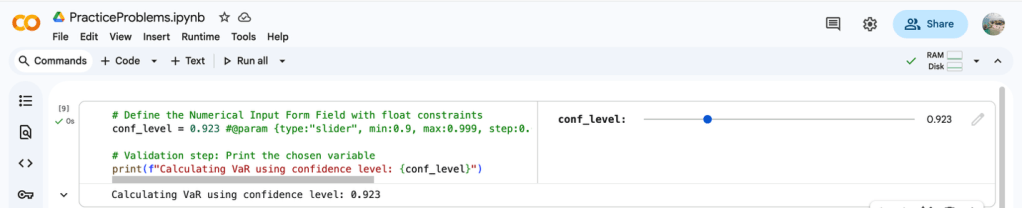
Practice Problem 2: Finance (Numerical Slider with Constraints)
Scenario: The risk management team calculates the Value-at-Risk (VaR) for a portfolio. They must be able to quickly adjust the Confidence Level used in the calculation, which must be a percentage between 90% (0.90) and 99.9% (0.999), in increments of $0.01. To allow precise, constrained numerical input for a core risk parameter, the risk management team must use a Colab Form Field Numerical Slider.
Problem to be Solved: Create a Numerical Slider Form Field labeled “VaR Confidence Level” with a minimum of 0.90, a maximum of 0.999, and a step of 0.001. The value must be assigned to the variable conf_level.
Knowledge and Skills Developed: Implementing the min, max, and step parameters for numerical input constraints. Using Form Fields to control a continuous numerical variable (float).
Cell returned confidence level 0.923
Practice Problem 3: Sports (IP Protection with hidden code cell)
Scenario: A professional sports team’s coaching staff built a notebook that contains proprietary feature engineering code that takes an athlete’s ID and calculates a specialized Athlete Performance Index (API). The coaches need to input the Athlete ID to get the score but must not be allowed to view the underlying proprietary calculation code. To protect the team’s intellectual property (the proprietary scoring algorithm), you must use the hide code feature in the “more cell actions” drop-down menu.
Problem to be Solved: Create a Numerical Input Form Field for the athlete_id. Ensure that when the notebook is opened, the code cell is hidden by default, exposing only the label “Athlete ID” and the input box.
Knowledge and Skills Developed: Understanding how to change the visibility state of a cell.
Output before activating the hide code feature in the “more cell actions” drop-down menu

Output after activating the hide code feature in the “more cell actions” drop-down menu

Goal 7 Result: All 3 practice problems completed (practice files deleted)
Part 3 of 3: Advanced Knowledge and Skills for Google Colab: Production and Collaboration
Goal 1 Statement: Learn Security and Untrusted Notebooks
Goal 1 Plan: (1) Read source materials and (2) Complete practice problems
Goal 1 Work Product: List of best practices
Goal 1 Result: Completed
Goal 2 Statement: Learn Collaboration and Version History
Goal 2 Plan: (1) Read source materials and (2) Complete practice problems
Goal 2 Work Product: List of best practices
Goal 2 Result: Completed
Goal 3 Statement: Learn Version Control and GitHub Integration
Goal 3 Plan: (1) Read source materials and (2) Complete practice problems
Goal 3 Work Product: List of best practices
Goal 3 Result: Completed
Goal 4 Statement: Learn Cloud Data Integration: Connecting to Google Sheets and BigQuery
Goal 4 Plan: (1) Read source materials and (2) Complete practice problems
Goal 4 Work Product: (1) 2 practice problems below and (2) List of best practices
Practice Problem 1: Dynamic Data Retrieval from Google Sheets (Business Domain)
Scenario: A business analyst team at a large retail chain maintains the daily sales targets for the next quarter in a Google Sheet called “Q4_Targets.” The sales forecasting model in Colab needs to pull the target sales for the current month dynamically for weekly model retraining by accessing a shared Google Sheet to compare the model’s predictions directly against current targets for performance tracking. The team must authenticate Colab and use the Sheet’s URL to access a specific cell (e.g., B2) containing the target.
Problem to be Solved: Write the Python code to securely authenticate the Colab notebook and retrieve the single cell value (the current month’s target, assumed to be in cell B2) from a shared Google Sheet identified by its URL.
Knowledge and Skills Developed: This teaches Sheets authentication and targeted cell retrieval using gspread, a core skill for pulling configuration or single-value inputs from business-maintained sources.

Practice Problem 2: Writing Model Forecasts to Google Sheets (Sports Domain)
Scenario: A sports analytics consultant working for a professional basketball team has generated the projected win total forecasts for the next season using a complex Colab model. The results need to be shared quickly with the management team, who only use Google Sheets, for the end of the preseason modeling cycle by pushing the data to a Google Sheets spreadsheet named “Season_Forecasts.” To make the results immediately available and interactive for non-technical stakeholders without manual copying and pasting, you must convert the final Pandas DataFrame into a list format and use gspread to write the data to a new sheet named “Model_V2_Results.”
Problem to be Solved: Create a simple DataFrame containing simulated forecast results, then use the gspread library to write the entire DataFrame (including headers) to a new sheet named “Model_V2_Results” in the target Google Sheets spreadsheet.
Knowledge and Skills Developed: This teaches the essential production skill of writing structured output back to a business-friendly cloud tool, completing the data science loop from data ingestion to results communication.
Authentication and Credentials

Create and convert DataFrame
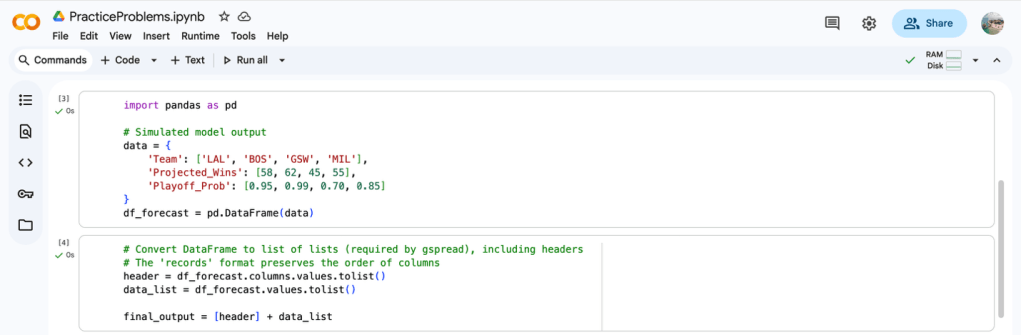
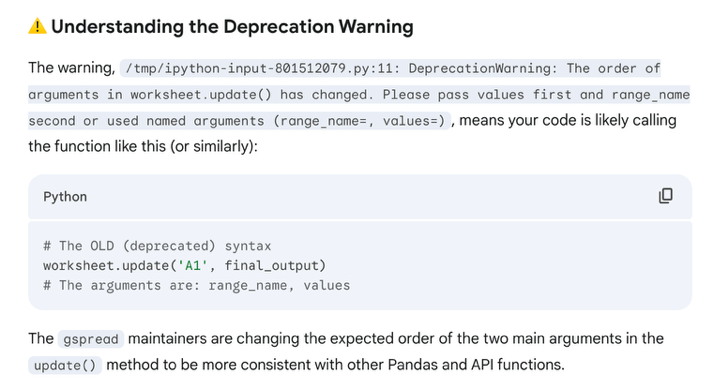
Completed writing data to new sheet. Deprecation warning noted.


Explanation of deprecation warning

Goal 4 Result: Both practice problems completed (practice files deleted)
Goal 5 Statement: Learn Environment Reproducibility: Notebook Setup
Goal 5 Plan: (1) Read source materials and (2) Complete practice problems
Goal 5 Work Product: List of best practices
Goal 5 Result: Completed
Goal 6 Statement: Learn Sharing and Reporting Results: Static Output
Goal 6 Plan: (1) Read source materials and (2) Complete practice problems
Goal 6 Work Product: List of best practices
Goal 6 Result: Completed
Goal 7 Statement: Learn Sharing and Reporting Results: Live Notebook vs. Static Report
Goal 7 Plan: (1) Read source materials and (2) Complete practice problems
Goal 7 Work Product: List of best practices
Goal 7 Result: Completed
Goal 8 Statement: Learn Advanced Use: Using Colab Secrets
Goal 8 Plan: (1) Read source materials and (2) Complete practice problems
Goal 8 Work Product: List of best practices
Goal 8 Result: Completed
Goal 9 Statement: Learn Model Deployment Overview: Colab and Hugging Face/Vertex AI (Conceptual)
Goal 9 Plan: (1) Read source materials and (2) Complete practice problems
Goal 9 Work Product: List of best practices
Goal 9 Result: Completed
 Insights By Scott Ernst